tmux-backed mobile terminal control

Run AI coding sessions on your server. Continue them from iPhone.

Attach and resume Codex CLI, Gemini CLI, Claude Code, and shell sessions with a mobile UX built for long-running terminal workflows.

Getting Started

  1. Run the installer on your server

    curl -fsSL https://muxcli.dev/install.sh | bash
  2. Scan pairing QR in the iOS app

    Add your server in seconds and connect with token-based auth.

  3. Create a session and continue work

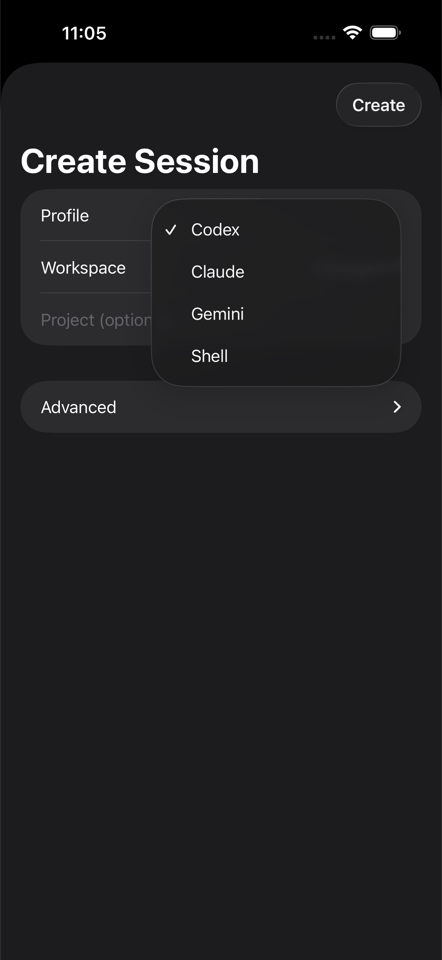
    Launch Codex, Gemini, Claude, or shell. Detach and reattach without losing progress.

Demo

Recommended clip: 20-35s showing install, scan, attach, and approval-needed signal.

1. Install

Run one command and start `muxclid` as a local service.

2. Pair

Scan QR to add server and persist auth on device.

3. Attach

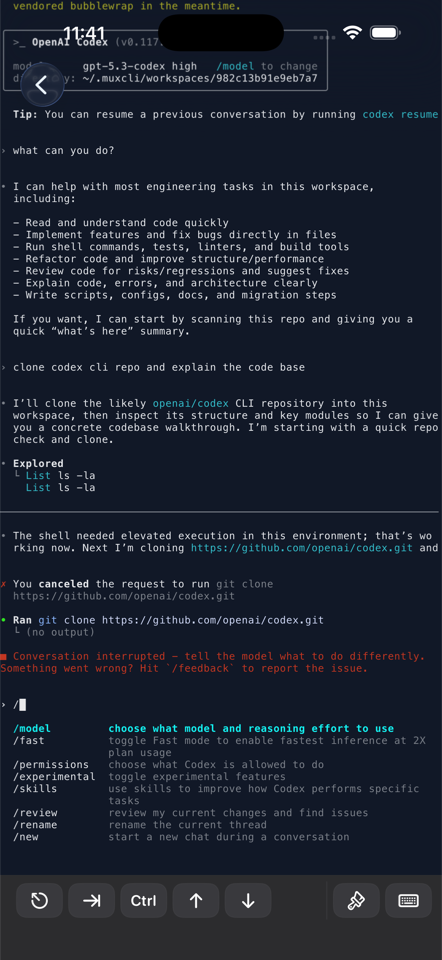
Open any session and continue prompt workflows from iPhone.

4. Return on signal

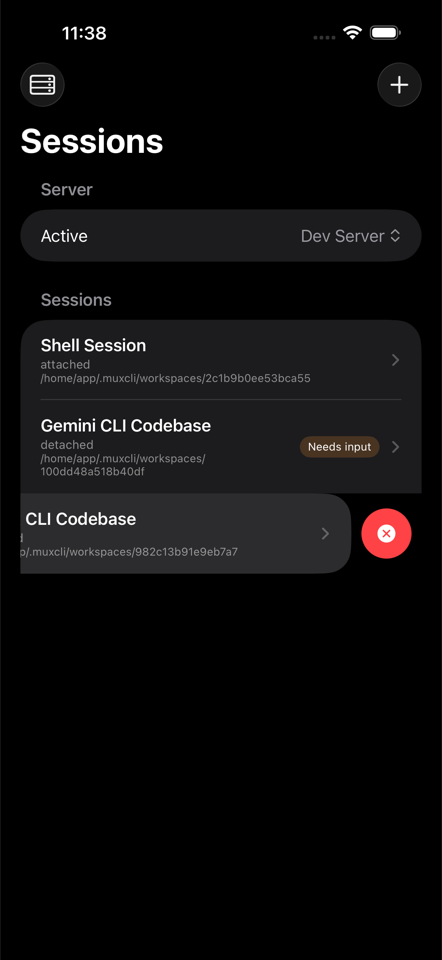
See attention-required state from the session list.

CLI Sessions

Codex CLI

Resume long-running coding sessions and approvals without losing context.

Gemini CLI

Track ready/action-required state while your server keeps the session live.

Claude Code

Attach and detach from tmux-backed tool sessions as needed.

Shell

Use MuxCLI as a general mobile terminal frontend for basic tmux sessions.

Notifications

MuxCLI surfaces attention-required session states so you can return exactly when a tool needs approval or user input.